HOMMA Smart Home
Quick Guide
v.2025.12.01

Table of Contents
Overview
Automation
With HOMMA Smart Home, you don’t need to manually turn lights on or off.
Sensors detect your presence — lights automatically turn on when you enter a room and turn off shortly after you leave.
To support a healthy daily rhythm, lighting brightness and color temperature are also optimized automatically throughout the day. (Circadian lighting)
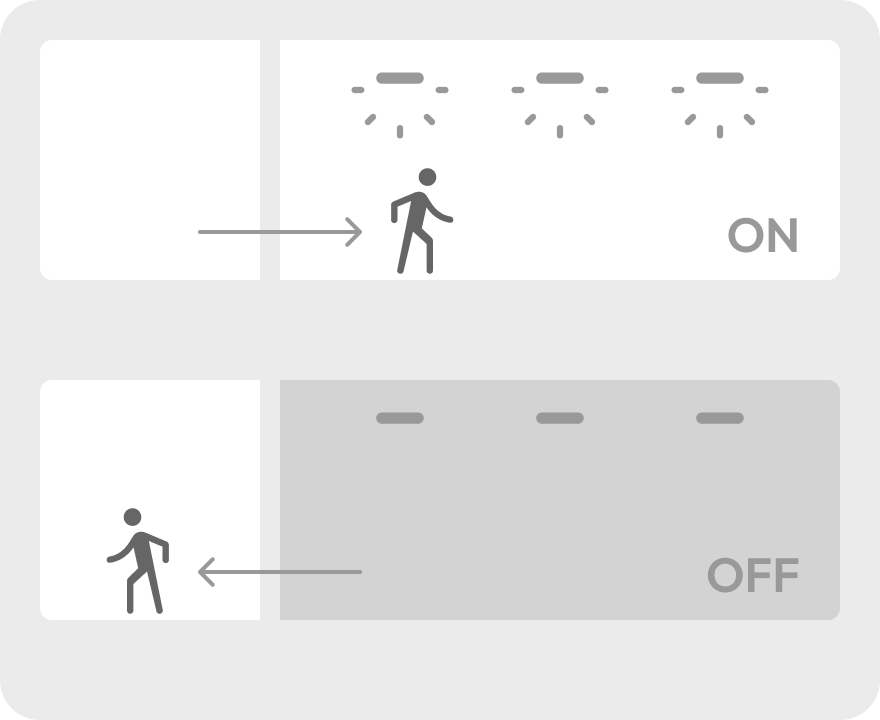
Auto-On
Auto-Off

Daytime
Evening
Night
Activities
Activities allow you to temporarily apply a custom lighting environment tailored to your preferences or specific situations, independent of automation settings.
For example, you can instantly switch to a calm lighting scene for movie watching, or brighten the space for parties — all with a single tap.

“Dinner” Activity
“Bar” Activity
Air Conditioner
By connecting with supported network-enabled air conditioners, you can check and control the AC from the app even when you’re away. On extremely hot or cold days, you can adjust the temperature before arriving home so the room is comfortable when you walk in.
Initial Setup
User Registration
To use the HOMMA App after moving in, you need to complete user registration.
Please send the following information to support@hom.ma:
- Full name of the contract holder
- Email address to be used with the HOMMA App
* Please make sure to use an email address you can reliably receive important notifications.
- Property address and unit number
- Scheduled move-in date

QR code for email submission
* We may verify the provided information with the property owner to confirm your identity.
After confirming your contract details, we will send you an invitation email from the system.
* Verification may take some time. Thank you for your understanding.
Installing the HOMMA App
Once you receive the invitation email, install the HOMMA App on your smartphone.
Download from the link below:
https://app.hom.ma/

Enter the “Invitation Code” shown in the invitation email under the “First-time users” section.
Review and accept the Terms of Use.
Enter your registered email address and set your preferred password to complete the setup.
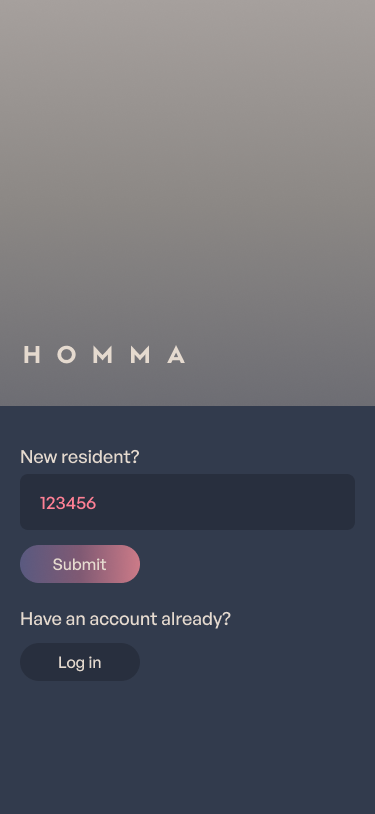
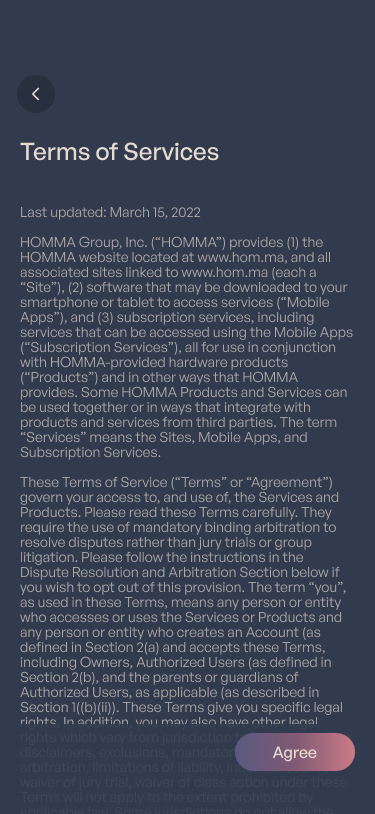
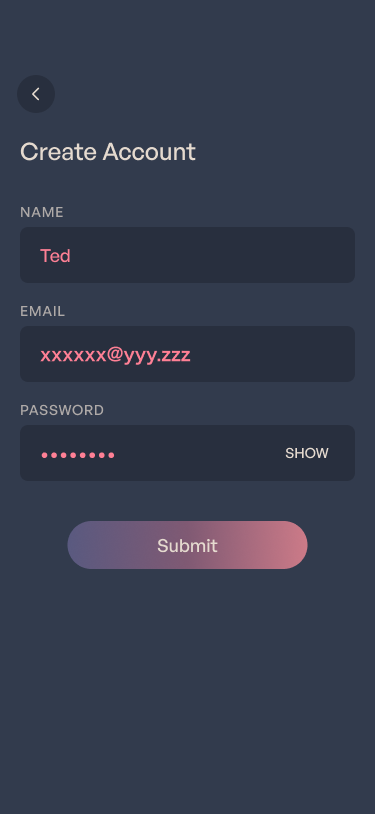
Initial Setup
Inviting Users
To allow family members or other residents to use the app, please invite them by following the steps below.
In the app, go to “Settings” > “Members”.
Tap the “+” button at the top right to open the “Add Member” screen.
Enter the person's name, email address, and permission level (Admin or Non-admin), then tap “Invite”.
An invitation email will be sent. Please ask the new user to complete their registration.

Home Tab
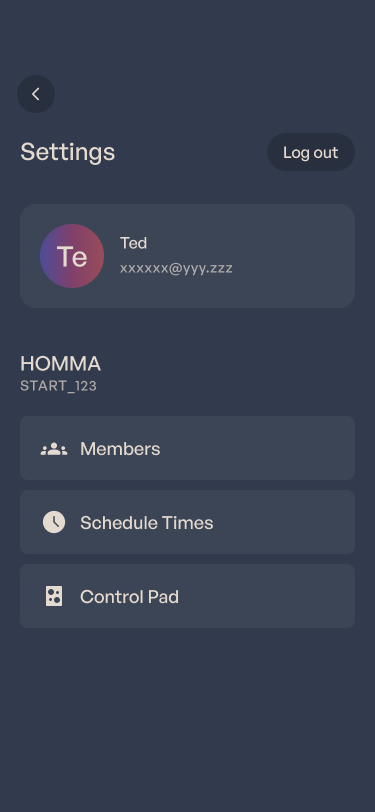
Settings Top
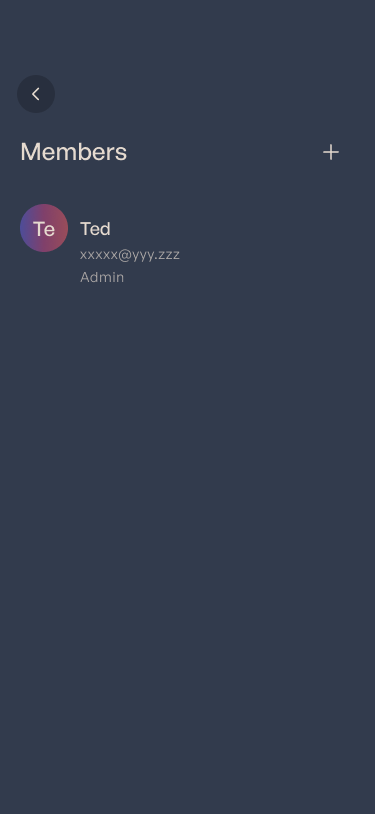
Members List

Add Member
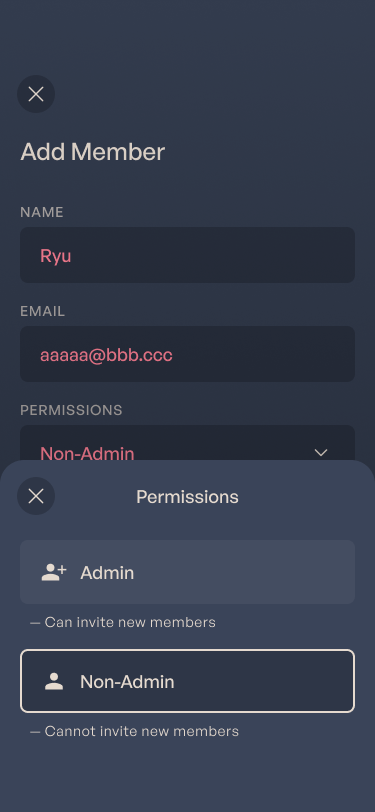
Permission Selection
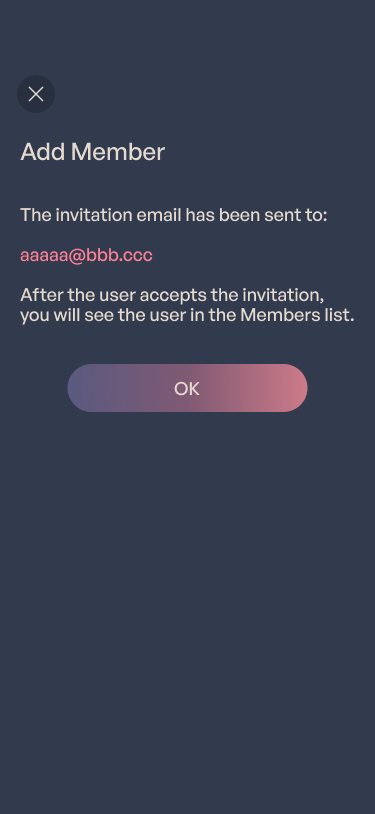
Invitation Sent
*About Roles
Admin: Can add new members.
Non-admin: Cannot add new members.
HOMMA App
Main Screens
With the HOMMA App, you can easily control and manage various devices in your home, such as lighting and air conditioning.
Home Tab
This screen allows quick access to frequently used features. You can check the current lighting status, control the air conditioner, and access support.
Rooms Tab
View the status of each room at a glance. You can control lights individually and adjust automation settings for each room.
Activities Tab
Create and manage Activities. Easily set up scenes tailored to your lifestyle and preferences.
Home Tab
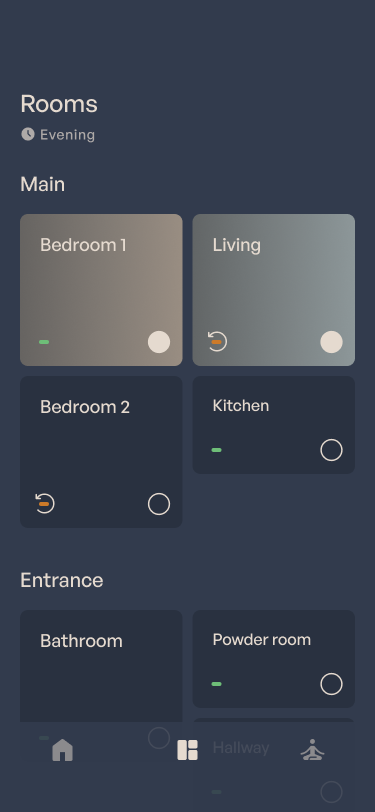
Rooms Tab
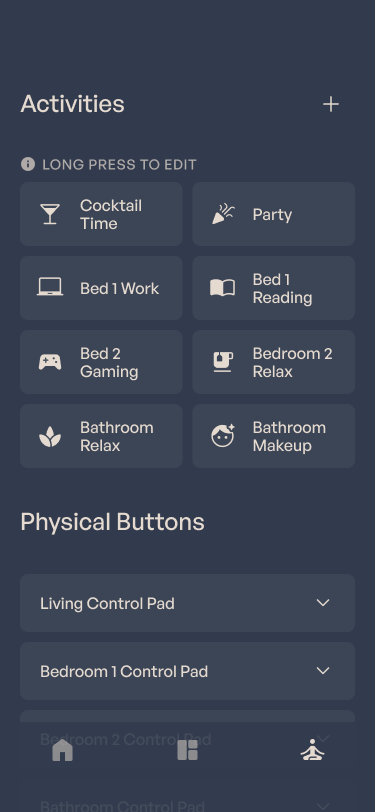
Activities Tab
(Tap to turn on)
HOMMA App
Lighting Control
From the Rooms tab, you can open the Room Details screen to adjust detailed lighting settings.
When you use an Activity or manually change settings, Automation turns off. You can return to Automation mode using the Return to Automation button.
Rooms Tab

Room Details
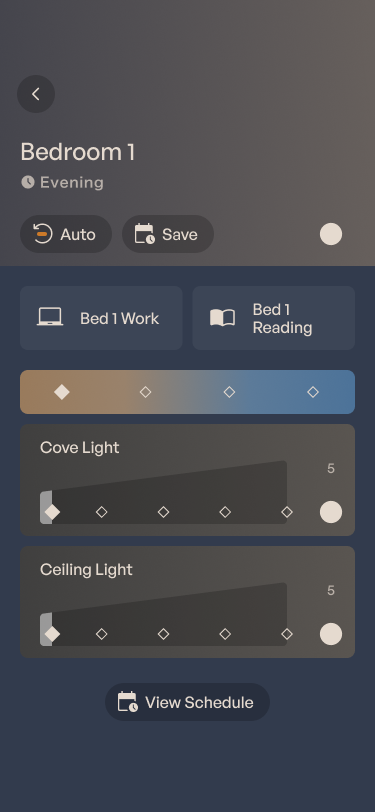
Automation Off State
Control
(See next page)
(See next page)
HOMMA App
Lighting Automation Settings
You can open the lighting automation settings screen by tapping the “Schedule” button in each room’s detail screen.
Rooms Tab
Room Details
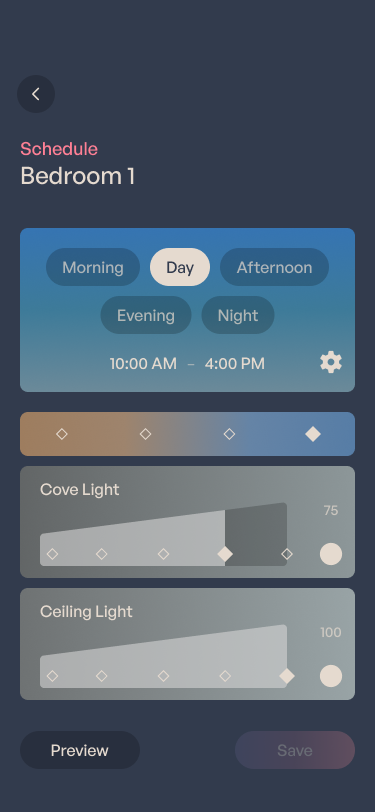
Schedule
You can also save the changes made in the room detail screen directly into Automation.
Room Details
Automation Off State
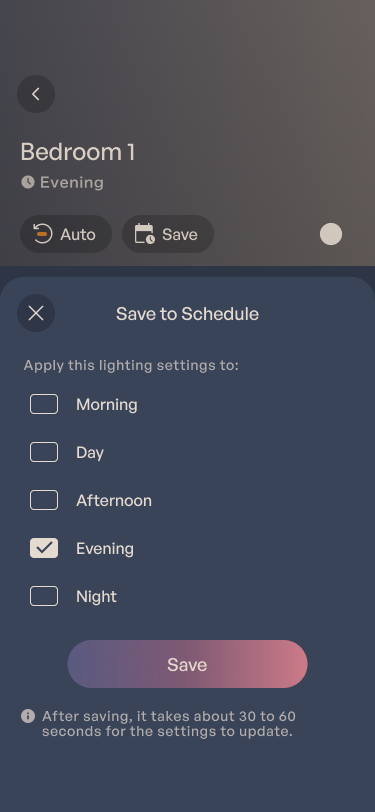
Save to Schedule
Change
If you wish to reset to the default settings, please contact support.
HOMMA App
Automation Schedule Settings
You can change the automation times in two ways:
In the app: Settings > Schedule Times
Tap the settings icon on the Schedule screen
Home Tab
Settings Top
Rooms Tab
Room Details
Schedule
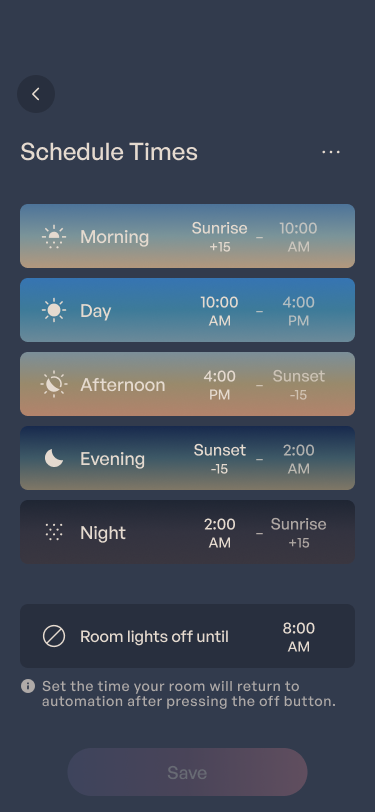
Schedule Times
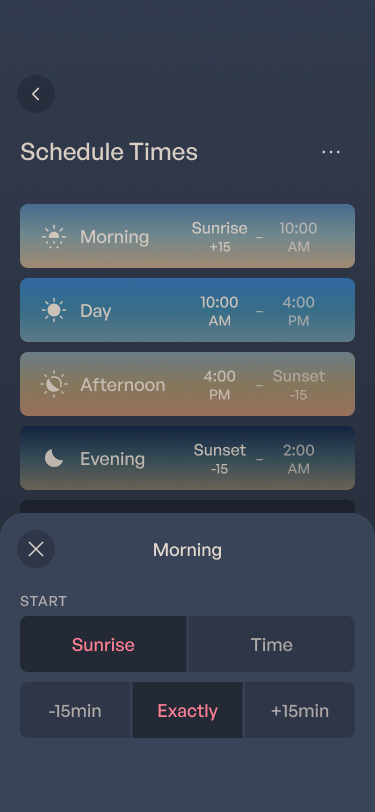
Time Settings
*Sunrise and sunset times are automatically calculated based on the property's latitude and longitude, and will vary by season.
HOMMA App
Using Activities
All Activities are displayed at the top of the Activities tab.
On the Room Details screen, only the Activities related to that room are shown.
Home Tab
Activities Tab
Rooms Tab
Room Details
HOMMA App
Creating & Editing Activities
To create a new Activity, tap the “+” button at the top right of the Activities tab.
To edit an existing Activity, long-press the Activity you want to modify to open the edit screen.
Activities Tab
Long Press
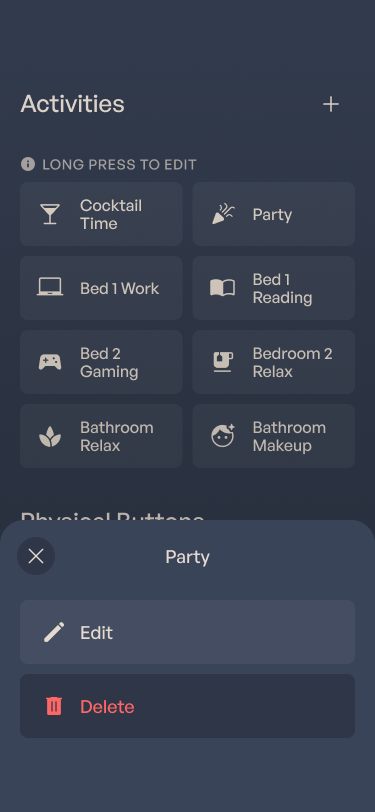
Edit Menu
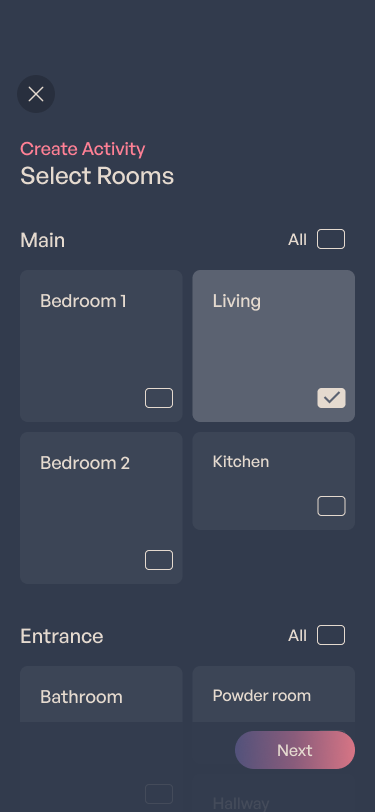
Select Rooms
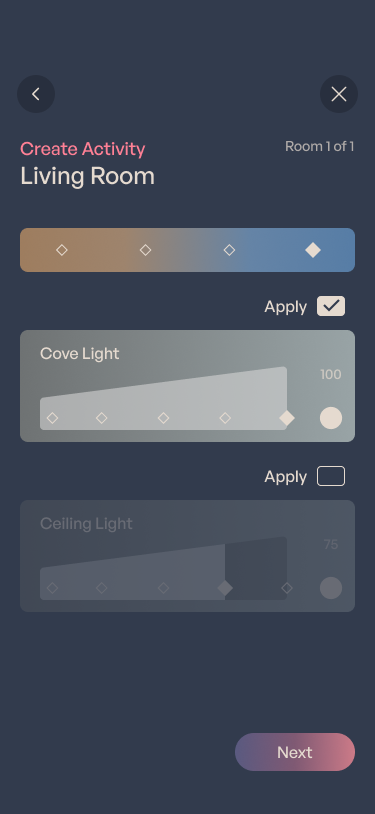
Lighting Settings
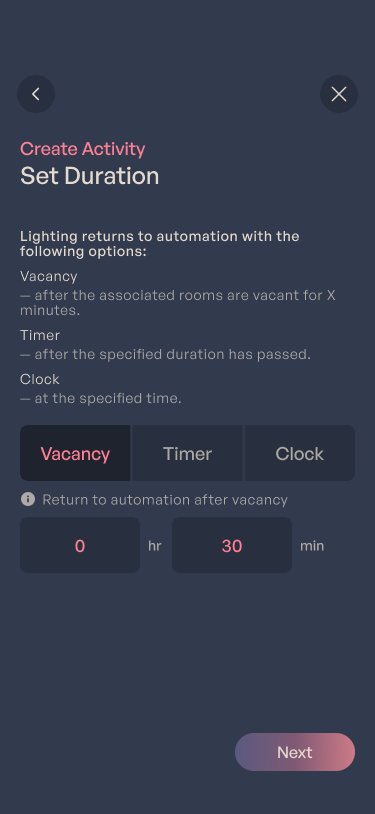
Set Duration
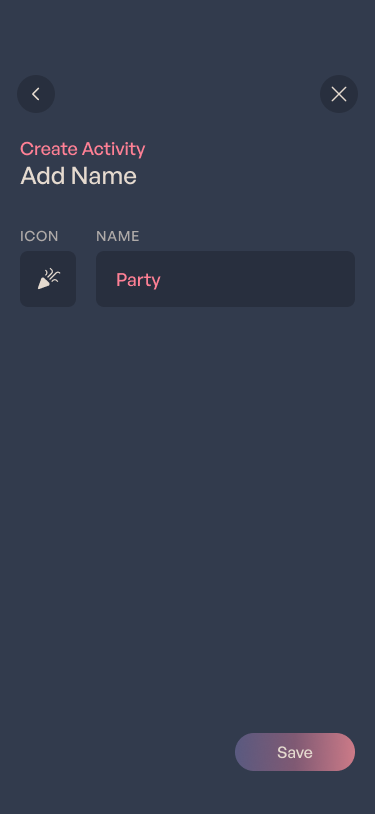
Icon & Name
Create / Edit Activity
HOMMA App
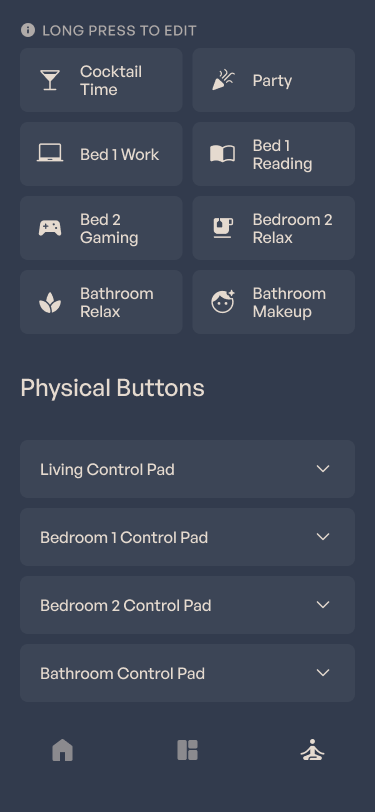
Assigning Activities to Control Pad
You can change the activities assigned to the control pad.
Scroll down to the bottom of the Activities tab.
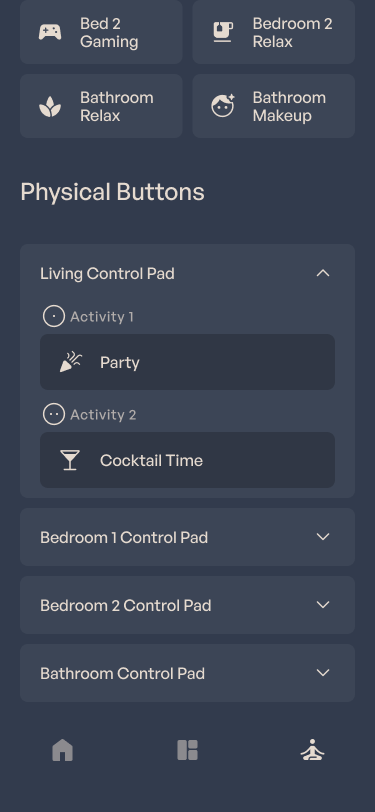
Tap the control pad you want to assign under the “Activity Buttons” section.
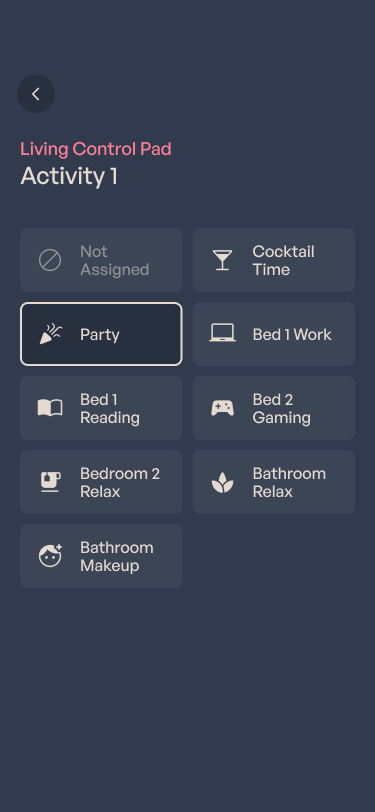
“Activity 1” and “Activity 2” will appear. Select either button to open the settings screen.
Choose the activity you want to assign. You will automatically return to the Activities tab and the change will be saved.
Activities Tab
Assign Activity
Example: Assigning “Party” to “Activity 1” of the “Living Control Pad”
Control Pad
Button Names & Functions
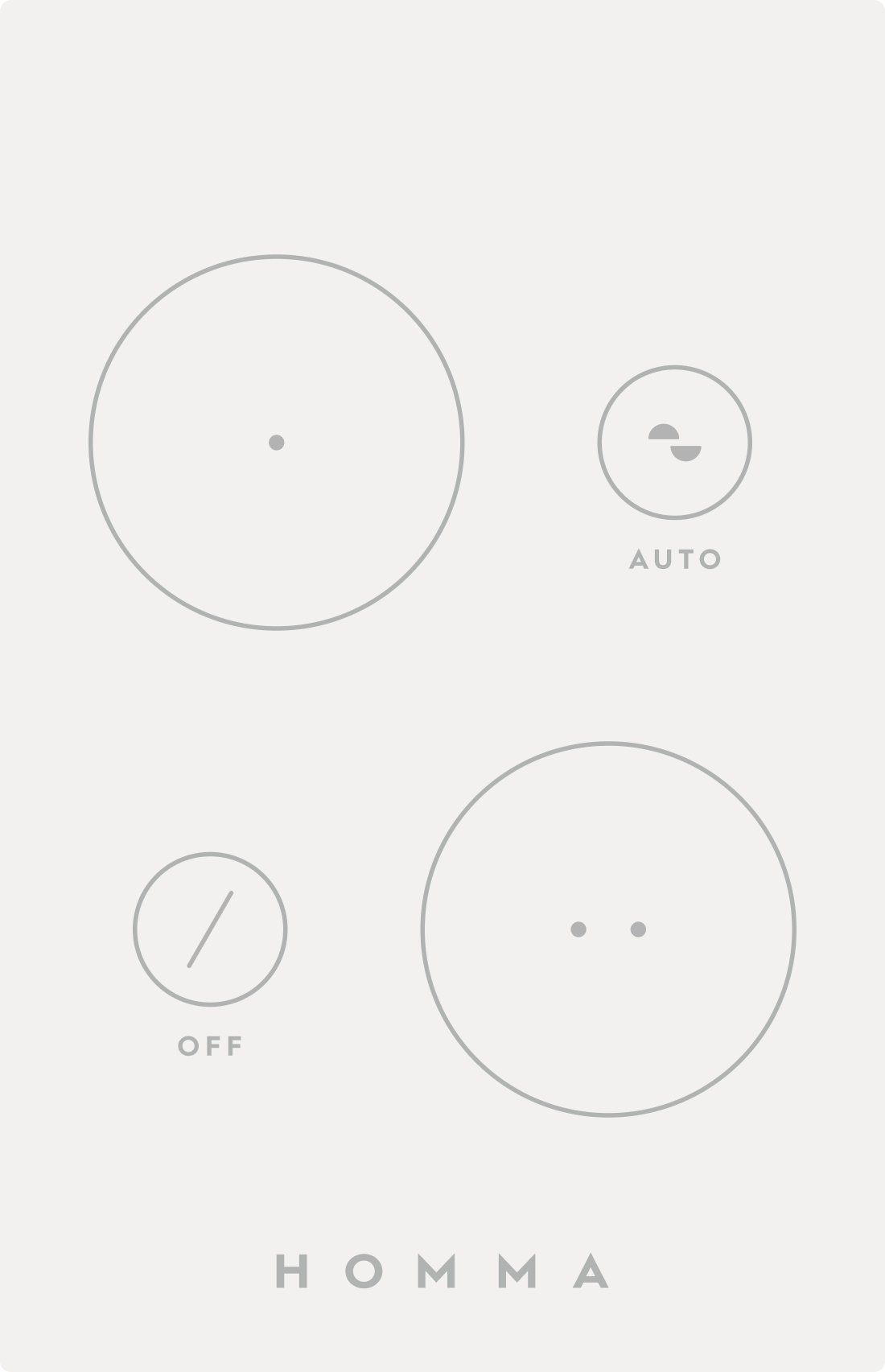
A control pad is installed in main rooms, allowing quick access to activities, automation toggle, and turning off lights for bedtime.
The following four buttons are available:
Activity 1 Button
You can assign one activity of your choice.
You can check and customize the settings from the app.
Activity 2 Button
You can assign another activity.
Auto Button
Check the current automation status.
Green
: Automation Enabled
Amber
: Automation Disabled
Press the button to return to automation.
Off Button
Temporarily disables sensors and stops automatic lighting.
Useful at bedtime. See the next page for details.
Control Pad
Sleep-time Lighting Control
You can temporarily pause the automated lighting at bedtime using the following methods:
Press the Off button on the Control Pad.
Turn off the room light from the HOMMA app.
After being paused, automation will automatically resume at 8:00 AM the next morning.
You can change the resume time in the app under “Settings” > “Schedule Times”.
Control Pad
Home Tab
Settings Top
Schedule Times
Air Conditioner
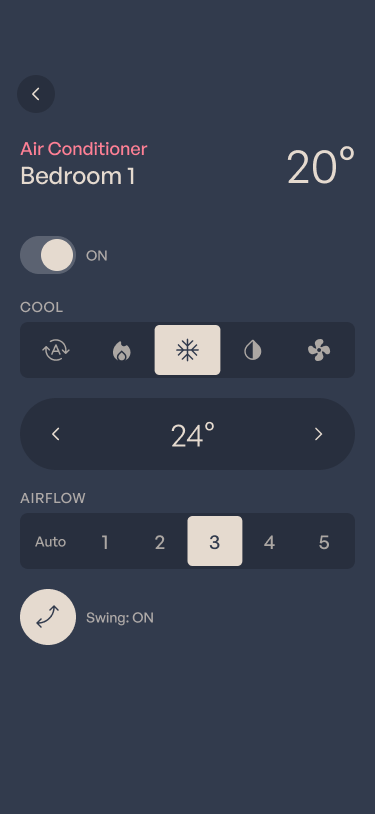
You can check and control the air conditioner in each room from the Home tab of the app.
※Caution
The included AC remote is transmit-only, so it cannot receive the air conditioner's current state. As a result, the settings shown in the app may not always match the remote’s display.
Home Tab
Air Conditioner
Shades
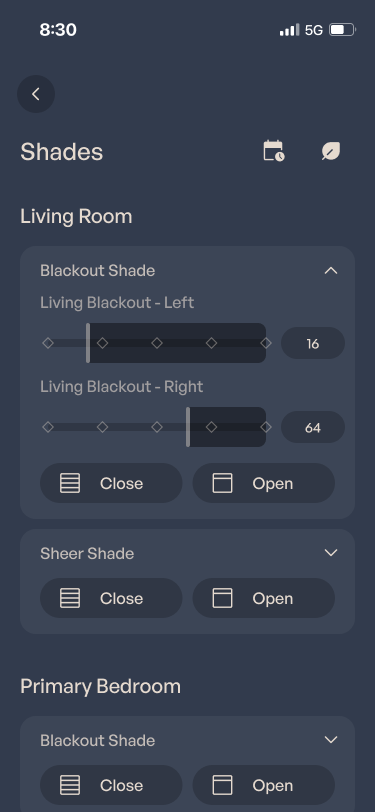
You can see which shades are available to control from the Home tab of the app.
The blackout and sheer shades in each room can be opened and closed together. You can also tap the arrow on the right to display a detailed slider and adjust each shade individually.
Each room is also equipped with a remote control for shade operation.
Home Tab
Shades
Support
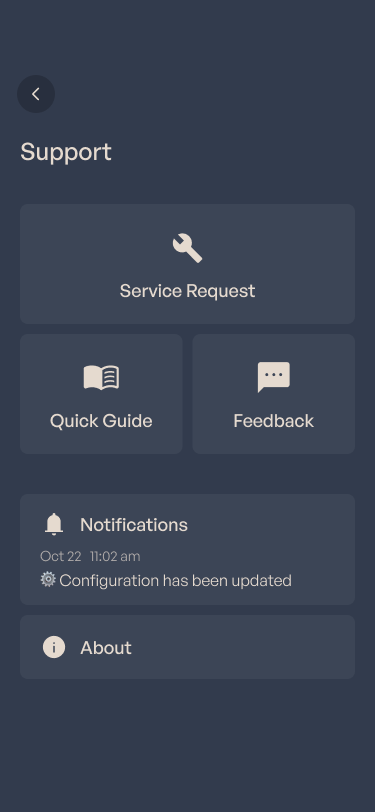
If you experience any issues or troubles during your stay, please contact us through the 'Service Request' in the HOMMA app's Support screen or email us at support@hom.ma. Both are available 24/7.
We also welcome your feedback. Please share your thoughts and experiences with the HOMMA smart home. You can send feedback from the 'Feedback' section.
Home Tab
Support
Company Information
Company Name:
HOMMA Group Inc.
Address:
N&E BLD. 6F, 1-12-4 Ginza, Chuo-ku, Tokyo
 Download PDF